

User Guide
Classroom Sync is a Google Sheets™ Add-On to help school administrators and teachers maintain class and grade information across multiple systems.
The application leverages the OneRoster® standard to integrate with any compliant SIS.
This guide provides an overview of the functionality available within Classroom Sync.

01
Subscribe
The Classroom Sync Add-On requires a subscription. If you have questions about the product or compatibility with your Student Information System, please contact us using the contact form or email address.
02
Setup
To use Classroom Sync, you will need a registered OneRoster application for your Student Information System. Provide these credentials and the relevant OneRoster API links to Classroom Sync to enable the Add-On to interact with your SIS. Classroom Sync requires an OAuth2.0 application, as support for OAuth1.0 has been deprecated by the OneRoster standard (see security section here).
Instructions to generate a key and secret for use with Classroom Sync can be found in the documentation for your SIS. For example, see Blackbaud’s developer documentation here.
Once you have obtained a key and secret from your SIS environment, enter them in the setup menu of Classroom Sync, then select “save credentials”. This will test the connection to SIS using your credentials, then save them if it is successful. Note that this connection will function for all users of the Google Sheet in which you save them, but no user will be able to access or view the credentials. To remove the credentials from the Google Sheet, select the “delete credentials” option.


NOTE: Configuration Options
When creating your OneRoster application, your SIS may provide different options for the scope and structure of the data.
For best results and full functionality, we recommend using a format similar to "each section" shown at left, where each section of a class is a separate row and treated independently. Classroom Sync does support "lead section" format where a single class is provided with all relevant terms, but certain functionality will be limited to avoid data conflicts between sections.
03
Sync Classes and Rosters
The Class Sync menu allows you to export classes, create courses, and sync rosters.
All of these operations will take data from SIS as the source system of record and make updates in Google Classroom. No changes will be made to classes or rosters in the SIS.
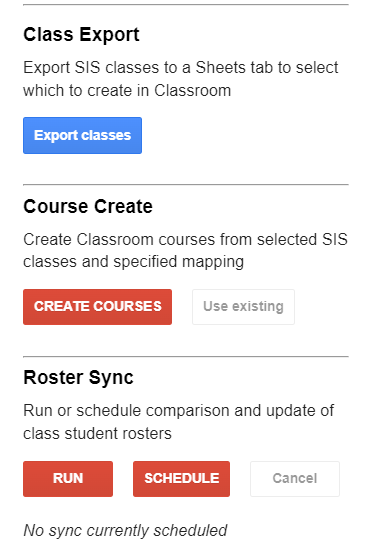
1. Export classes

The class export retrieves a list of classes from SIS with related teachers and terms based on the selected filters for schools, teachers, and term start date, which are written to a tab in your Google Sheet.
Once classes have been exported, further exports will provide the option to overwrite existing classes in the Google Sheet or append and update the existing list.
04
Sync Assignments and Grades
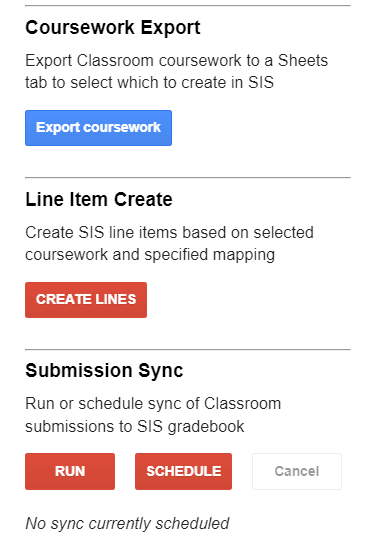
The Grade Sync menu allows you to export coursework, create assignments (line items), and sync grades.
All of these operations will take data from Google Classroom as the source system of record and make updates in the SIS. No changes will be made to coursework or submissions (grades) in Google Classroom.
1. Export assignments

The coursework (assignment) export retrieves a list of published coursework from active courses in Google Classroom based on the selected filters for work type and due date, which are written to a tab in your Google Sheet.
Once coursework has been exported, further exports will provide the option to overwrite existing classes in the Google Sheet or append and update the existing list.
Quiz Assignments: The Google Classroom API does not properly identify quiz assignments. As a workaround, any assignment with 1 (Form) attachment is labeled quiz assignment. This only impacts the category applied to created SIS lines (assignments).

05
Manage Settings and Logs
Access your profile view by selecting your profile picture from the home menu.
Your profile shows basic information from your Google account and details of your Classroom Sync license, quota and current usage. You can export the record of sync actions taken within the last 30 days to view the courses included in your current usage, or the complete log of all actions for your reference.
You can additionally specify the type of email alerts to receive from scheduled application syncs.